How to Play Toonle: Controls, Brushes and Frames
Toonle is a drawing game where every drawing you finish becomes one frame, and the frames play back in the order you drew them. This guide is the full control list, what each tool does, and the fixes for the two things that go wrong most often: a stroke you want back, and a loop that judders instead of moving.
The game itself runs on crazygames.com. The Play button on this site opens it there in a new tab, because the developer has switched off embedding for Toonle and the game is not allowed to run inside another website.
Where Toonle runs, and what you need
Toonle is made by Alpbyte as an HTML5 game, which means it runs in the browser: a desktop or laptop, a tablet, or a phone. There is nothing to install and no download before you draw, and an account is only needed if you want to keep what you make. It is not a scored game either – CrazyGames files it under simulation, relaxing, coloring and drawing – so there is no clock to beat and no run to lose. You draw a loop, you press play, and you decide whether it moves the way you pictured.
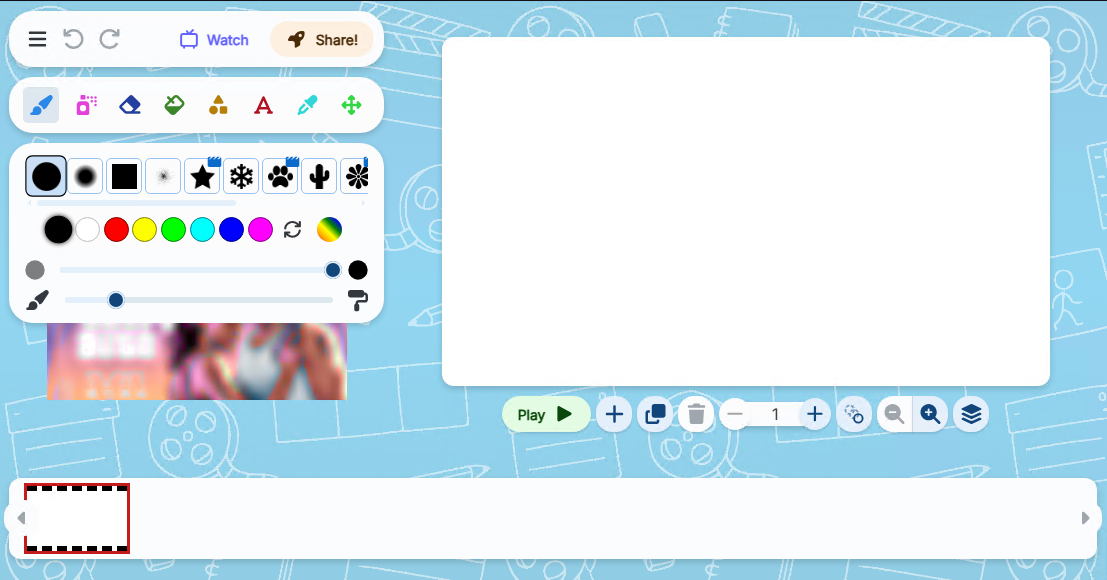
Every Toonle control on a computer
- Left-click draws on the canvas, and the same click presses the in-game buttons.
- Ctrl + Z undoes the last stroke.
- Ctrl + Y redoes the stroke you just undid.
- B selects the brush.
- E selects the eraser.
- [ shrinks the brush and ] grows it.
Those six are the whole keyboard. Everything else – frames, colors, playback – is pressed on screen. The two worth learning first are Ctrl + Z and the bracket keys: one gets you out of a bad line without cleaning up the edges, and the other changes the size of the tip faster than hunting for a size button between frames.
Drawing on a phone or tablet
You draw with your finger, and Toonle works in both landscape and portrait. Turn the phone sideways before you start a frame if you want more room across the canvas: switching orientation halfway through a loop changes how much space you have around the drawing, and it is easier to keep the frames consistent if the orientation stays the same for the whole loop.
Saving your frames
This is the one thing worth knowing before you draw your first frame: saving depends on whether you are signed in to CrazyGames. Signed out, you can draw and play the loop back in that tab, and the game puts a banner across the top saying your progress won't be saved – the frames live only in that tab, so reloading the page or closing it loses every one of them, and opening the game again later does not put you back where you stopped. Signed in, saving is automatic: the game stores your work locally every second and syncs it with your CrazyGames account every five minutes, so there is nothing to click before you leave the page. The in-game menu at the top left also has a save option, if you would rather save by hand.
Creating the account takes a moment and happens inside the game: the Log in button in that banner opens the CrazyGames sign-up, and when it is done the game confirms that the account has been created.
So sign in before you start a loop rather than halfway through: a loop that has already been drawn while signed out should be treated as not saved.
Once a loop is saved to an account, it stops being tied to one machine. Sign in on another computer, or come back to Toonle days later, and the animation is there to open and keep drawing frames in – the saved work follows the account, not the browser you made it in.
Your first loop in six steps
- Pick a subject that can repeat. A ball that bounces, an eye that blinks, a flag that waves, a wheel that turns. Four to eight frames is a finished piece, not a warm-up.
- Choose three to five colors before frame one. Draw a few test strokes in each, then keep them. Frames drawn minutes apart drift in color, and on playback that drift reads as a flicker you then have to repaint away.
- Draw frame one as the whole shape. Not a hint of it, not a sketch – the real drawing, in its starting position.
- Copy it and move one thing. Only the part that should move gets moved. If everything shifts a little, the eye reads shaking rather than motion, and you cannot tell which frame caused it.
- Keep going until the movement completes. A bounce needs the top, the fall, the squash and the return. The last frame should land where the first frame begins, so the loop can run without a jump.
- Play it back every couple of frames. A wrong frame is obvious on the second frame and invisible by the tenth, once you are used to seeing it.
The built-in tutorial inside the game walks through the same tools if you would rather be shown than read. There is also a short Toonle video on YouTube in which the Game to Game channel opens the game and makes an animation with it.
Frames, playback and the seam
A frame is one drawing; the order of the frames is the animation. The thing that decides whether a loop looks professional is the seam – the join between the last frame and the first. Two rules cover most of it. First, the movement should be the same size on every frame: if the ball drops 40 pixels on one frame and 15 on the next, the loop stutters. Second, the last frame must not repeat the first one. If both exist, playback holds on that drawing for two frames and the loop reads as a pause.
Color palettes that hold together
A custom palette is the difference between a loop that looks drawn and a loop that looks assembled from unrelated pictures. Use three to five colors: one dark for the outline, two mids for the body, one light for highlights. Pick them first, use them in that order on every frame, and resist adding a sixth color halfway through – it will appear on the last four frames only, which is exactly where the eye lands on playback.
When something goes wrong
- The undo went too far. Ctrl + Y puts the stroke back. Undo is per stroke, not per line, so a long stroke disappears as one piece.
- The stroke is shaky. Undo it and draw it again with a larger brush; a thin tip records every wobble of the hand, a wider one reads as a clean line.
- The loop jerks at the seam. Check whether the last frame copies the first, then check whether each frame moves the same amount.
- The colors flicker. Compare the palette on the first and last frames; the drift is usually a color picked later rather than the palette itself.
- The frames were gone when I came back. That is the signed-out case: without a CrazyGames account Toonle does not save anything, so reloading the page or closing the tab takes the whole loop with it, and there is no way to pick it up again. The banner across the top of the game says so before you start. Sign in before the next loop.
- The game does not open. Toonle runs on crazygames.com, so that connection is the part that matters. Reload the tab, try another browser or another network, and turn off extensions that block game scripts.
What to draw first
A bouncing ball with a squash on the contact frame. A blinking eye – two drawings are enough. A waving hand that travels across the canvas. A candle flame that leans left, then right. A two-second joke where a shape falls over. Each of these can be built in a handful of frames, and each one teaches the seam.
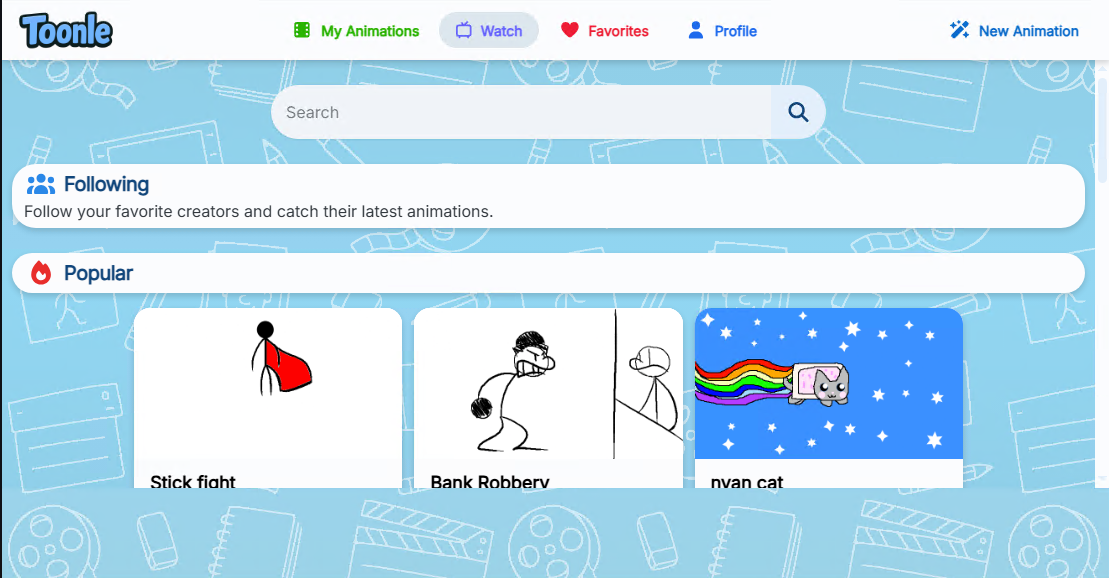
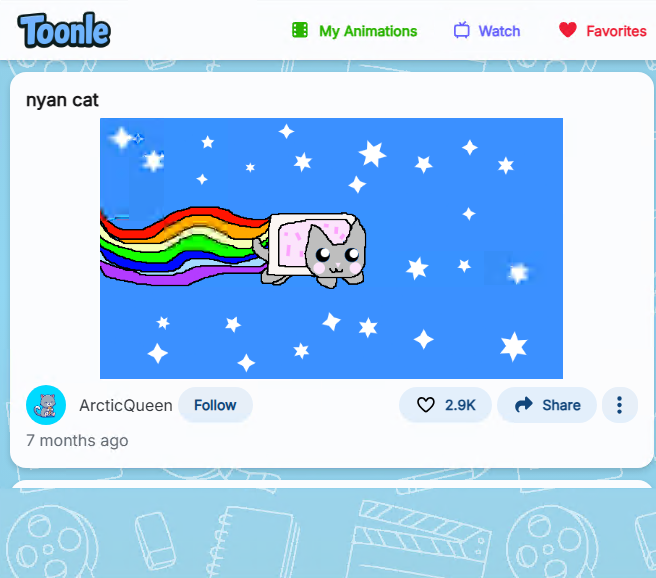
Each animation in that list also opens on a page of its own, one loop at a time, which is a better way to study a loop than a scrolling feed:
Questions about the controls
Do I need an account to play Toonle?
No account is needed to draw: the Play button opens the game on crazygames.com in a new tab and you can start straight away. An account only matters if you want to keep the animation – frames drawn while signed out are not saved, and signing in to CrazyGames turns saving on automatically, locally every second and to your account every five minutes.
Can I keep working on an animation I saved?
Yes. Saved frames belong to the CrazyGames account rather than to the browser, so you can sign in on another computer, or come back to the game days later, and carry on drawing in the same loop. Work drawn while signed out has no such home: reload the page and it is gone.
Can I play Toonle on a phone?
Yes. You draw with your finger and the game works in both landscape and portrait, so turning the phone sideways gives you more room across a frame.
What does Ctrl+Z do in Toonle?
Ctrl+Z undoes the last stroke and Ctrl+Y puts it back. B selects the brush, E selects the eraser, and the [ and ] keys change the brush size.
How many frames should a Toonle animation have?
Four to eight frames is enough for a finished loop such as a bounce or a blink. The last frame has to land where the first one begins, otherwise the loop jumps at the seam.
Is Toonle free?
Yes. Toonle is free to play on CrazyGames, there is no paid version of the game, and this page does not charge for anything.
Keep going
- Play Toonle – the Play button on the home page opens the game on CrazyGames in a new tab.
- Drawing tips before your first frame – five habits that save you from redrawing a whole loop.
- Toonle FAQ – whether it is free, whether it works on a phone, who made it.
Toonle is made by Alpbyte and published on CrazyGames. This page is an independent guide to the game and is not run by the developer or by CrazyGames.